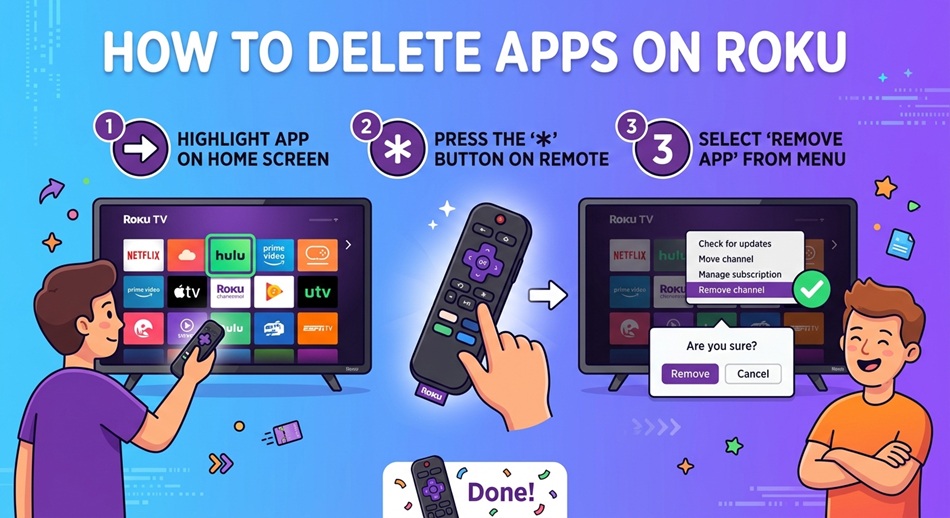
If your Roku home screen has turned into a graveyard of apps you tried once and forgot about, deleting them is quick. The only catch is knowing where Roku actually hides the Remove option. How to delete apps on Roku comes down to one button most people never notice: the star-shaped Options button on your remote. Miss it, and you’ll spend ten minutes digging through settings menus that don’t have what you’re looking for.
Quick answer: On your Roku home screen, arrow over to the app you want gone, press the * (star) button on your remote, then choose Remove Channel and confirm. No star button? Use the Roku mobile app instead: press and hold the app tile, then tap Remove. Both methods take under 15 seconds per app.
How to Delete Apps on Roku With Your Remote
This is the fastest way, and it works the same whether you’ve got a Roku Streaming Stick, Roku Express, Roku Ultra, or a Roku TV. Here’s exactly what to do:
- Press the Home button on your Roku remote to land on the main grid of app tiles.
- Use the arrow keys to highlight the app you want to remove. You don’t need to open it. Just highlight the tile.
- Press the * (star/asterisk) button. It’s usually near the top of the remote, above the directional pad. This opens a small options menu right over the tile.
- Select “Remove Channel.”
- Confirm by selecting “Remove” on the pop-up that appears.
The app disappears instantly, and every tile after it shifts left to fill the gap. That’s normal (Roku doesn’t leave blank spots), but it does mean your carefully organized grid gets reshuffled every time you delete something, which is mildly annoying if you like keeping certain apps in certain corners.
No Star Button on Your Remote?
Most Roku remotes, including the ones bundled with Roku TVs from TCL, Hisense, Onn, and Insignia, have the star button. If yours is a voice remote or a simplified remote without one, look for an “Options” label instead; it does the same job. If your remote truly has no options button at all, skip to the mobile app method below.
Deleting Apps on a Roku TV Specifically
The process above is identical on a Roku TV: same star button, same Remove Channel prompt. What trips people up is that the home screen has a few extra tiles mixed in. Live TV, Antenna TV, and any connected HDMI inputs (like a cable box or game console) show up as tiles that look exactly like apps. They aren’t. You can’t delete them because they’re not channels, they’re hardware connections. Highlighting one and pressing the star button will only give you the option to move it, not remove it.
If you’re trying to clean up a Roku TV home screen, focus on the actual streaming channels (anything you added from the Channel Store) and leave the input tiles alone. You can drag those to the end of the row instead, which gets them out of the way without breaking anything.
How to Delete a Roku App Using the Mobile App
If your remote is missing, dead, or just doesn’t have a working star button, the Roku mobile app (iOS and Android) does the same job from your phone.
- Open the Roku app and make sure your phone is on the same Wi-Fi network as your Roku device.
- Tap the Devices icon and select your Roku player or TV if you have more than one.
- Go to the Channels tab, which lists every app currently installed on that device.
- Press and hold the app you want gone.
- Tap Remove and confirm.
This works well if you’re managing a Roku in a bedroom or guest room from across the house, or if you just find scrolling on your phone easier than aiming a remote at the TV.
Troubleshooting: When Roku Won’t Let You Delete an App
The Remove Option Is Greyed Out or Missing
This almost always means you have an active subscription to that channel purchased through Roku (as opposed to through the app itself or a third party). Roku won’t let you delete a channel while you’re mid-billing-cycle on it. Go to Settings > My Channels > Manage Subscriptions, find the channel, and cancel or turn off auto-renew first. Once the subscription clears, the Remove option becomes available again, though sometimes not until the next day.
You Deleted an App and It Keeps Coming Back
Two things cause this. First, if the app is a Roku system channel (think Roku Channel, Roku Search, or anything installed by default), it can reappear after a software update because Roku reinstalls its own default set during major OS updates. Second, if you use the same Roku account across multiple devices, some channel data can resync and repopulate a tile that looks deleted but was only removed locally. A full restart (Settings > System > Power > System Restart) after deleting usually settles it.
Removing a Channel vs. It Still Showing Up in Search
People assume deleting an app scrubs it from Roku entirely. It doesn’t. Removing a channel only takes it off your home screen. If you search for that same app in the Channel Store afterward, it’ll still show up as available to install, because the Channel Store search isn’t tied to what’s currently on your device. That’s expected behavior, not a bug.
Pre-Installed Apps You Can’t Actually Delete
A handful of channels are baked into Roku OS itself and genuinely cannot be removed, no matter which method you try. The Roku Channel and Roku Search are the two most common ones people ask about. They’re tied to core Roku functions (search indexing and Roku’s own ad-supported content hub), so the star menu simply won’t offer a Remove option for them. Your only real option here is to drag them to the bottom of your grid so they’re out of sight. Which exact channels are locked can vary slightly by Roku OS version and device model, but if you press the star button and there’s no Remove Channel listed at all, treat that as your answer: it’s not removable.
Removing a Private or Hidden Channel
If you added a channel years ago using an access code (a “private channel”), it deletes the same way as any other app: highlight it, star button, Remove Channel. Where people get stuck is when the channel was added under an old Roku account or during a software version that’s since changed. Roku has also pulled non-certified private channels from its platform over the past couple of years as part of its developer program changes, so a channel that’s stuck or unresponsive may no longer be functional on Roku’s end at all. If deleting it normally doesn’t work, unplugging the Roku for about a minute and plugging it back in, then trying again, clears it up more often than you’d expect.
How to Reinstall an App You Deleted
Deleting a Roku app doesn’t touch your account or login with that service (Netflix, Hulu, whatever it is); your subscription and watch history are untouched. To get it back:
- Press Home, then select Streaming Channels from the left-hand menu.
- Use the search bar or browse categories to find the app.
- Select it, then choose Add Channel.
- Open the app once it’s installed and log in with the same credentials you used before. Everything picks up where you left off.
The tile will land wherever there’s open space on your home screen, which is usually not where it used to be. If home screen order matters to you, you’ll need to drag it back into position manually, since Roku doesn’t remember old positions.
Frequently Asked Questions
How do I delete an app on Roku without a remote?
Use the Roku mobile app on your phone. Connect to the same Wi-Fi as your Roku, open the Channels tab under your device, then press and hold the app and tap Remove.
Why won’t Roku let me remove an app?
Usually an active subscription purchased through Roku is blocking it: cancel or pause the subscription under Settings > My Channels > Manage Subscriptions first. If there’s simply no Remove option at all, it’s a locked system channel.
Does deleting an app on Roku cancel my subscription?
No. Removing the app tile and canceling the subscription are two separate actions. If you’re paying for a channel through Roku and just delete the app, you’ll keep getting billed. Cancel the subscription first, then delete the app.
Can I delete the Roku Channel or Roku Search?
No, those are built into Roku OS and don’t have a Remove option. The only workaround is dragging them to the bottom of your home screen grid.
Why does a deleted app keep reappearing on my Roku?
Usually a software update reinstalled a default system channel, or the same Roku account synced it back from another device. Restarting the Roku after deleting typically stops it from returning.
Will I lose my data if I delete and reinstall a Roku app?
No. Your login, watch history, and preferences live on the streaming service’s own servers, not on the Roku device. Reinstalling and logging back in restores everything.
How do I delete apps on a Roku TV versus a Roku streaming stick?
The steps are identical: highlight the app, press the star button, choose Remove Channel. On a Roku TV, just be careful not to confuse Live TV or HDMI input tiles for actual apps; those can’t be removed since they’re hardware connections, not channels.
Why does my Roku home screen look different after I delete an app?
Roku automatically shifts remaining tiles to fill the gap left by a deleted app, so your layout rearranges itself every time you remove something. There’s no setting to stop this. You just have to manually re-drag apps back into your preferred order afterward.
Can I remove a private channel added with an access code?
Yes, the same way you remove any other channel. If it won’t delete, unplug the Roku for about a minute, plug it back in, and try again. This clears up most stuck private channels.
How do I hide an app I can’t delete instead?
You can’t truly hide it, but dragging it to the very end of your channel grid gets it out of the way so it’s not one of the first tiles you see.