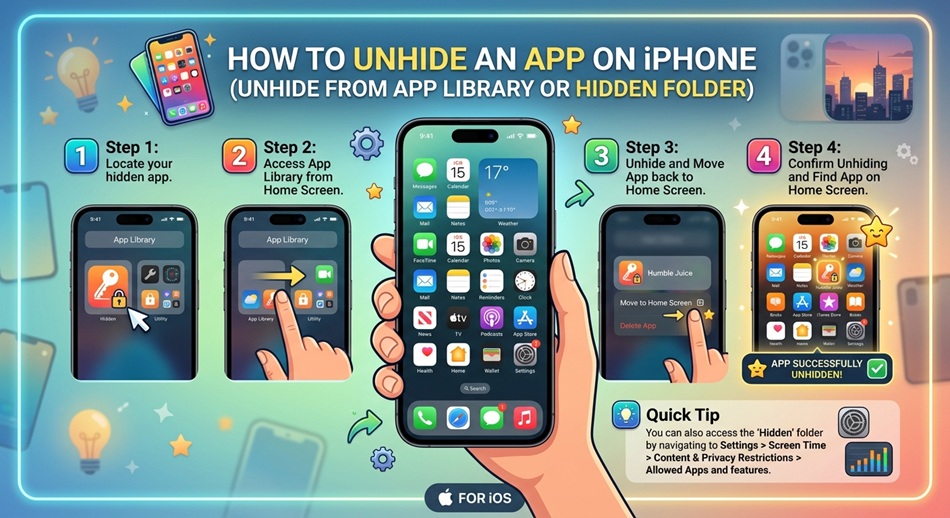
To unhide an app on iPhone, swipe left past your last Home Screen page to open the App Library and type the app’s name into the search bar at the top. If it’s installed, it’ll show up there even if it’s not hidden or on any Home Screen page. If it doesn’t show up at all, it’s likely sitting in the App Library’s Face ID-protected Hidden folder (iOS 18+), blocked by a Screen Time restriction, hidden from your App Store purchase history, or offloaded and needs reinstalling. Each situation needs its own fix, and I’ll walk through all of them below.
I’ve had this happen to me more times than I’d like to admit, usually right after a big iOS update reorganizes everything, or after I “cleaned up” my Home Screen six months ago and promptly forgot what I did. The good news: an app that’s missing is almost never actually deleted. iOS just has four or five different ways of making something disappear, and each one plays by its own rules.
First, figure out which situation you’re actually in
Before you start digging through settings menus, do this one thing: open the App Library (swipe all the way left past your last Home Screen page) and tap the search bar at the very top of the screen. Type the app’s name.
This is the step almost everyone skips, and it’s the fastest fix by far. If the app is installed and not specifically hidden, it will show up in that search result instantly, whether or not it has a spot on any Home Screen page. From there you can open it directly, or press and hold the icon to add it back to your Home Screen.
If the search comes up empty, move on to the scenarios below: you’re dealing with one of the other four situations.
1. The app was just removed from your Home Screen (still installed)
This is the most common cause, and the least dramatic. Somewhere along the way (maybe during a Home Screen cleanup, maybe automatically after a restore) the app got taken off your Home Screen pages but never got deleted or hidden. It’s just living quietly in the App Library.
- From your Home Screen, swipe left repeatedly until you reach the App Library (it’s the last page, with a search bar at top and a grid of auto-sorted folders like Social, Utilities, and Entertainment below it).
- Use the search bar and type the app’s name, or scroll through the category folders; apps you use often tend to land in a folder near the top.
- Once you find the icon, press and hold it until a menu pops up.
- Tap Add to Home Screen.
The app now appears both in the App Library and on whichever Home Screen page had room for it. It was never hidden in the technical sense, just off-screen.
2. The app is in the Hidden folder (iOS 18 and later)
Starting with iOS 18, Apple added a real “hide this app” feature, and it’s probably what most people mean when they search for this. If you (or someone using your phone) long-pressed an app and chose Hide or Hide and Require Face ID, the app doesn’t just leave the Home Screen. It gets pulled into a locked folder called Hidden at the very bottom of the App Library, and it stops appearing in search, notifications, and even Spotlight.
If you’re on iOS 17 or earlier, skip this section. The Hidden folder doesn’t exist yet, so you’re dealing with one of the other scenarios instead.
To get an app out of it:
- Open the App Library and scroll all the way to the bottom, past every other folder.
- Tap the folder labeled Hidden.
- Authenticate with Face ID, Touch ID, or your device passcode when prompted.
- Press and hold the app icon you want to recover.
- Tap Unhide (or on some iOS 18 builds, Don’t Require Face ID, which removes the lock and moves it back into the regular App Library).
- The app now behaves normally again: search for it and add it back to your Home Screen the same way as in the first scenario.
One quirk worth knowing: a hidden app also disappears from your recent calls, messages, and notification previews related to that app while it’s hidden. If something like a messaging or dating app “vanished” along with its notifications, this is almost always what happened.
3. Screen Time is blocking the app
This one feels different from the others because the app isn’t hidden so much as switched off. If a family member set up parental controls, or you turned on Content & Privacy Restrictions yourself at some point and forgot, the app can be flat-out disallowed: it won’t appear anywhere, including in the App Library search you just tried.
- Open Settings and tap Screen Time.
- Tap Content & Privacy Restrictions. If it’s toggled off entirely, restrictions aren’t your issue, so skip to the next scenario.
- Tap Allowed Apps (on some iOS versions this is under iTunes & App Store Purchases or listed as individual app toggles).
- Find the app in the list and switch it on.
If you don’t know the Screen Time passcode because someone else set it up (common on a kid’s or teen’s phone), you’ll need that person to unlock it, or use Settings > Screen Time > Change Screen Time Passcode > Forgot Passcode?, which can reset it using your Apple ID.
Worth checking here too: Settings > Screen Time > App Limits. That’s a different setting: it doesn’t hide an app, but it can gray it out and block launching until the next day, which people sometimes mistake for the app being gone.
4. The app is hidden from your App Store purchase history
This one trips people up because the app might genuinely still be sitting on your phone, fully installed and working. It’s just missing from your account’s purchase list, which affects things like re-downloading it on a new device or seeing it in your purchase history at all.
- Open the App Store app.
- Tap your profile picture or initials in the top-right corner.
- Tap your name at the top of the account screen (or Apple Account, depending on iOS version).
- Scroll down and tap Hidden Purchases.
- Find the app in the list, then tap Unhide next to it.
Once unhidden, the app goes back into your normal purchase history. If it’s not currently installed on the phone, it’ll show a cloud download icon; tap it to reinstall.
This is the scenario people run into most often when setting up a new iPhone and noticing a paid app they bought years ago isn’t showing up under Purchased.
5. The app was offloaded, not deleted
Offloading is iOS quietly freeing up storage by removing an app’s binary while keeping its icon, data, and documents in place. It’s not hiding in the search sense (the icon is usually still exactly where it was, just with a small cloud icon next to the name), but a lot of people assume it’s gone because tapping it used to open the app instantly and now it doesn’t.
- Look at your Home Screen or App Library for an icon with a small download cloud badge instead of the usual icon.
- Tap it once. iOS will redownload and reinstall the app automatically, keeping your existing data and login intact in most cases.
If you can’t spot it visually, check where it happened:
- Go to Settings > General > iPhone Storage.
- Wait for the list to load, then find the app. Offloaded apps are labeled with their storage size next to a note that the app itself isn’t installed (documents and data are still listed separately).
- Tap the app, then tap Reinstall App (or Offload App will instead show as an option if it’s still fully installed, letting you tell the two states apart).
If this keeps happening to apps you actually use, turn off automatic offloading: Settings > App Store (or Settings > General > iPhone Storage on some iOS versions) and toggle off Offload Unused Apps.
Still can’t find it? A few last things to check
If none of the above turns anything up, the app might genuinely be deleted rather than hidden. Check Settings > General > iPhone Storage for a full installed-apps list, and search your purchase history in the App Store (not just Hidden Purchases) to confirm you still own it. It’s also worth checking whether you’re logged into the right Apple ID, since purchases and hidden states don’t transfer between accounts.
Frequently asked questions
What’s the difference between hiding and deleting an app on iPhone?
Hiding keeps the app fully installed with all its data intact; it just moves out of normal view and, on iOS 18+, behind Face ID. Deleting removes the app and, usually, its local data from the device entirely. A hidden app reappears instantly once unhidden; a deleted one has to be redownloaded from scratch.
Why can’t I find an app in my App Library search?
Either it’s in the Hidden folder (iOS 18+), it’s been restricted through Screen Time, or it’s actually been deleted. App Library search only surfaces apps that are installed and not locked behind the Hidden folder’s Face ID gate.
Does hiding an app also hide its notifications?
Yes. Once an app is in the Hidden folder, its notifications, badges, and previews stop showing on the Lock Screen and Notification Center until you unhide it.
Can someone else tell I hid an app on my iPhone?
Not from the Home Screen or App Library. The Hidden folder looks like any other locked folder and doesn’t reference the app by name until it’s unlocked with your Face ID, Touch ID, or passcode.
I don’t see a Hidden folder in my App Library. Why not?
You’re likely on iOS 17 or earlier. Apple introduced the dedicated Hidden folder and app-locking feature in iOS 18. Update your iPhone through Settings > General > Software Update if you want access to it.
How do I hide an app on iPhone in the first place?
Press and hold the app icon on your Home Screen or in the App Library until the quick-action menu appears, tap Require Face ID or Hide and Require Face ID, then confirm. This is iOS 18+ only.
Why does an app show a cloud icon instead of opening?
That means it’s been offloaded, not hidden. Tap it once to trigger a reinstall; your data and login usually carry over since offloading only removes the app binary, not its documents and data.
Can Screen Time restrictions hide apps without me knowing?
Yes, especially on a shared family device or a phone set up through Family Sharing. If an app you expect to see isn’t listed anywhere, check Settings > Screen Time > Content & Privacy Restrictions > Allowed Apps before assuming it’s deleted.
Will unhiding an app restore my old data and login?
In every scenario above except a genuine deletion, yes. Hiding, restricting, offloading, and hiding purchase history are all reversible states that don’t touch the app’s stored data.
Does unhiding a purchase from the App Store reinstall the app automatically?
No. Unhiding it in Hidden Purchases only restores it to your visible purchase history. You still need to tap the download icon next to it to actually reinstall it on your device.