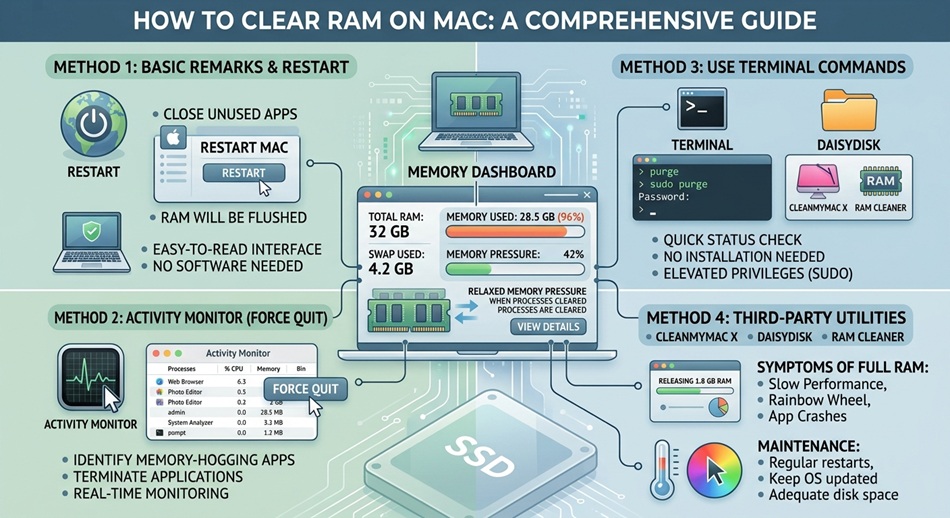
The fastest way to clear RAM on Mac is to restart it, which empties both RAM and disk caches completely. If a full restart isn’t practical right now, open Terminal and run “sudo purge,” which clears inactive memory caches without closing anything you’re working on.
A Mac running slow after weeks of uptime is almost always a memory problem, not a hardware problem, and it’s one of the easiest things to actually fix once you know where to look. If restarts and closing tabs don’t help and the slowdown feels more like storage than memory, it’s worth also checking your SSD’s health to rule that out.
The fast fix: restart
Restarting clears RAM and disk caches completely and is genuinely the most reliable fix. If your Mac has been running for weeks without a restart and feels sluggish, this alone solves it more often than any targeted memory-management trick.
The no-restart fix: sudo purge in Terminal
- Open Terminal (search for it with Spotlight, Cmd+Space).
- Type
sudo purgeand press Enter. - Enter your administrator password when prompted, then press Enter again.
This clears inactive memory caches without closing any of your open apps or windows, which makes it the better option when a restart would interrupt something you’re in the middle of.
Find out what’s actually using your RAM first
Before closing things blindly, open Activity Monitor (Applications > Utilities) and click the Memory tab. This shows every running process and exactly how much memory each one is using, so you can target the actual problem instead of guessing.
Close what’s actually eating memory
- Force-quit heavy apps: in Activity Monitor, select a memory-hungry process and click the X button to force quit it.
- Close excess browser tabs: a single browser tab can use over 1GB of RAM on its own, and unused extensions add up too. Closing tabs you’re not actively using is one of the highest-impact fixes available.
- Clean up a cluttered Desktop: macOS treats every icon on your Desktop as a live preview it has to render and keep in memory, so a Desktop full of files genuinely does use more RAM than a tidy one.
- Disable unnecessary login items: apps that launch automatically at startup (under System Settings > General > Login Items) keep running in the background using memory, whether you’re actively using them or not.
- Check for memory leaks: if one specific app’s memory usage keeps climbing the longer it stays open, rather than settling at a stable number, that’s a memory leak in that app, and the fix is closing and reopening it periodically until the developer patches it.
Understanding what Activity Monitor is actually showing you
Activity Monitor’s Memory tab splits usage into a few categories that are worth knowing rather than treating as one big number: wired memory is locked in place and can’t be freed, compressed memory is data macOS has squeezed to save space, and swap is data pushed to disk because RAM ran out, which is the real sign of memory pressure worth acting on. The Memory Pressure graph at the bottom is the fastest single indicator: green is fine, yellow means it’s working harder than ideal, red means you’re genuinely constrained.
Resetting PRAM/NVRAM: a different fix for a different problem
PRAM (or NVRAM on newer Macs) is small, separate memory that stores specific settings like display resolution, sound volume, and startup disk selection, not your general RAM usage. It’s not a RAM-clearing method, but it’s commonly confused with one because the reset process looks similar. If you’re dealing with display, sound, or startup issues rather than general slowness, that’s the actual fix: shut down, then power on while immediately holding Option + Command + P + R for about 20 seconds.
When slowness might be hardware, not memory
If restarting, purging, and closing memory-hungry apps doesn’t meaningfully help, it’s worth ruling out a hardware issue instead of continuing to chase a memory fix that isn’t the real problem. Restart your Mac holding the D key to run Apple Diagnostics, which checks for hardware problems including memory faults. Signs worth taking seriously: random restarts, unexplained file corruption, or consistent slowness even right after a fresh restart with nothing open.
Frequently asked questions
Does sudo purge actually help, or is it just a placebo?
It genuinely clears inactive memory caches, though how much it helps depends on how much cached (not actively used) memory your Mac was holding. It won’t help if your memory pressure is high because of apps that are actively running and using RAM right now, only ones sitting in an inactive cache.
How do I know if my Mac actually needs more RAM?
Open Activity Monitor’s Memory tab and check the Memory Pressure graph at the bottom. If it’s consistently in the yellow or red zone even after closing unnecessary apps, that’s a sign your Mac’s installed RAM may genuinely be undersized for how you use it, not something clearing caches will permanently fix.
Will closing browser tabs really make a noticeable difference?
Yes, especially with modern web apps and media-heavy pages. It’s common for a browser with 20+ tabs open to be using several gigabytes of RAM on its own, so closing what you’re not using is one of the most effective single changes you can make.
Is it bad to restart my Mac too often just to clear RAM?
No, restarting doesn’t harm your Mac. If you find yourself needing to restart frequently just to keep performance reasonable, that’s a sign worth investigating further, either too many resource-heavy apps running at once or genuinely insufficient RAM for your workload.