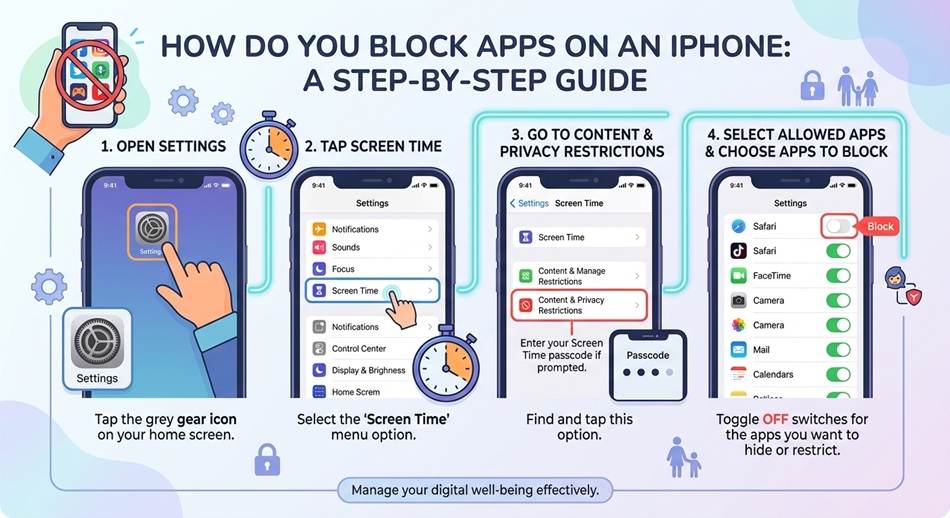
To block apps on an iPhone, go to Settings > Screen Time > App Limits > Add Limit, choose the app or category, and set the limit to 1 minute with “Block at End of Limit” turned on. This effectively blocks the app once the minute is up, and it requires a Screen Time passcode to bypass, which is what actually makes it stick. For a temporary, one-app lockdown instead, Guided Access is the faster option.
iPhone doesn’t have a single “block this app” switch the way some third-party parental control tools promise. What it has is Screen Time, a genuinely capable set of tools once you know which one actually does what you’re trying to do.
App Limits: best for blocking an app long-term
- Open Settings and tap Screen Time.
- Turn on Screen Time if it isn’t already enabled.
- Tap App Limits, then Add Limit.
- Select the specific app, or an entire category, you want to block.
- Set the limit to 1 minute.
- Make sure Block at End of Limit is turned on.
Once the minute runs out each day, the app locks behind a “Time Limit” screen that requires your Screen Time passcode to override, which is what actually stops someone (including yourself) from just reopening it.
Content & Privacy Restrictions: best for blocking downloads or purchases
If your goal is preventing new apps from being installed at all, rather than limiting an app you already have, go to Settings > Screen Time > Content & Privacy Restrictions and adjust the iTunes & App Store Purchases settings. This blocks new downloads and purchases without touching apps already on the phone.
Downtime: best for blocking access during specific hours
Downtime schedules a window, like overnight or during school hours, where only apps you’ve explicitly allowed remain accessible. It’s the right tool when the goal is time-of-day restriction rather than blocking a specific app entirely. Set exceptions under Always Allowed in Screen Time settings, phone, messages, or specific apps you still want reachable during Downtime, like a maps app, without it counting as breaking the restriction.
Guided Access: best for a quick, temporary lock
Guided Access isn’t really about blocking an app; it’s about locking the phone into one specific app temporarily. Go to Settings > Accessibility > Guided Access and turn it on, then triple-click the side button while in an app to start a session. It’s useful for handing your phone to a kid for one game without them wandering into everything else, not for a lasting block. A useful extra for younger kids specifically: while in a Guided Access session, you can circle parts of the screen to disable touch there, or disable the keyboard entirely, which stops a toddler from accidentally backing out of the app or triggering purchases.
Blocking in-app purchases specifically
If your concern is purchases within an app you’re otherwise fine leaving accessible, rather than the app itself, that’s a separate toggle under Settings > Screen Time > Content & Privacy Restrictions > iTunes & App Store Purchases > In-app Purchases, set to Don’t Allow. This blocks spending without blocking the app.
Blocking specific websites instead of apps
If the problem is really a website (accessed through Safari) rather than a dedicated app, App Limits on the Safari app itself won’t fully solve it, since it blocks the whole browser, not one site. For that, go to Settings > Screen Time > Content & Privacy Restrictions > Content Restrictions > Web Content, and add the specific site under “Limit Adult Websites > Add Website” to block it while leaving the rest of Safari usable.
Third-party blocking apps: when they’re actually worth it
Some third-party apps layer additional features on top of Screen Time, like more detailed usage reports or remote management for a family. They still rely on the same underlying Screen Time APIs Apple provides, so they can’t do anything more fundamental than what’s already covered above; what they add is convenience and reporting, not a technically stronger block.
Which method should you actually use?
- Want an app blocked indefinitely: App Limits with Block at End of Limit.
- Want to stop new app downloads: Content & Privacy Restrictions.
- Want apps blocked during set hours only: Downtime.
- Need a quick temporary lock, one-time use: Guided Access.
Frequently asked questions
Can someone bypass App Limits without the passcode?
Not without knowing the Screen Time passcode, which is separate from your device passcode. If you’re setting this up for someone else, make sure to set a Screen Time passcode they don’t know, under Settings > Screen Time > Change Screen Time Passcode.
Does blocking an app also hide it from the Home Screen?
No, App Limits blocks access to an app once its time is up, but the icon stays visible. If you want an app hidden entirely, that’s a different setting under Settings > Screen Time > Content & Privacy Restrictions > Allowed Apps, or you can move it into the App Library’s Hidden folder if you’re on iOS 18 or later.
Can I block apps on someone else’s iPhone remotely?
Yes, if their device is set up under Family Sharing. Go to Settings > Screen Time, select their name under Family, and you can manage App Limits and Downtime for their device from your own phone.
Will blocking an app delete its data?
No, blocking through Screen Time only restricts access; it doesn’t touch the app or its data at all. If you’re actually trying to free up storage rather than restrict access, clearing app cache is the relevant guide instead.