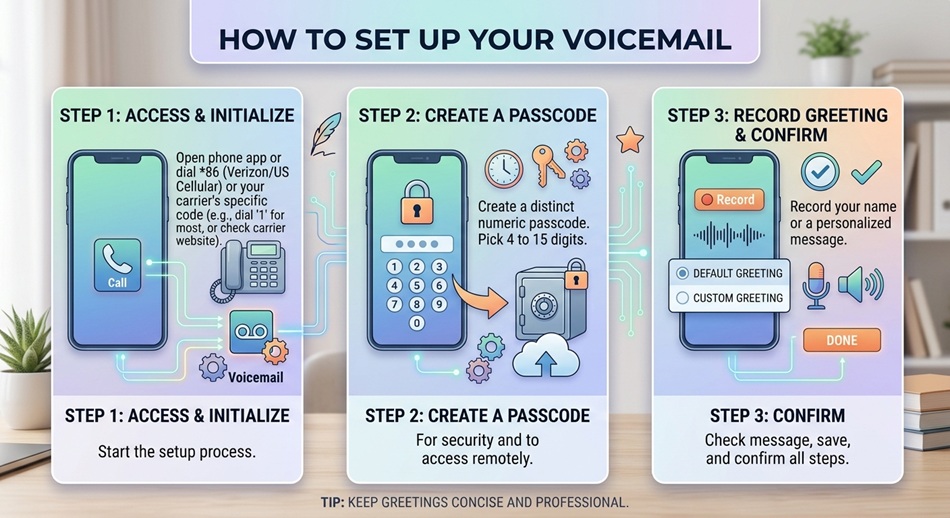
To set up voicemail on iPhone, open the Phone app, tap Voicemail, then tap Set Up Now, create a password, and record or choose a greeting. On Android, the exact path varies by phone brand, but generally you’ll find voicemail setup inside the Phone app’s settings or by long-pressing the “1” key on the dial pad.
Voicemail setup is one of those things you do once and forget about, until you get a new phone or switch carriers and realize you never actually finished it. Here’s the process for both platforms.
iPhone: setting up voicemail
- Open the Phone app.
- Tap the Voicemail tab at the bottom.
- Tap Set Up Now.
- Create a voicemail password when prompted.
- Choose Default for a standard greeting, or Custom to record your own. If you go custom, you can record and re-record it until it sounds right before saving.
Android: setting up voicemail
Android voicemail setup varies more by phone brand and carrier than iPhone does, but the general path is:
- Open the Phone (dialer) app.
- Look for Settings within the app, then find Voicemail.
- Follow the on-screen setup prompts, which typically ask you to set a PIN and record a greeting.
If you can’t find it through settings, long-pressing the 1 key on the dial pad often connects you directly to your carrier’s voicemail setup line as a fallback.
Alternative method: call your carrier’s voicemail number directly
If the in-app setup isn’t working, or you’d rather set things up by voice prompt instead of on-screen steps, every carrier has a dedicated voicemail access number you can dial directly. In the US, this is usually the same long-press-1 shortcut mentioned above; carriers elsewhere often use a specific short code (for example, some international carriers use codes like 121, 321, or 707 depending on the network). Once connected, an automated voice prompt walks you through setting a password and recording a greeting the same way the in-app flow does. Check your carrier’s support page if you’re not sure which number applies to your account.
A common edge case: setup skipped after switching phones
If you transferred your number to a new phone or switched carriers, voicemail setup sometimes gets skipped silently during the migration, especially the password step, since your old settings don’t always carry over cleanly. If voicemail seems to already be “set up” but isn’t behaving as expected (wrong greeting, can’t access messages), it’s worth deliberately re-running setup from scratch rather than assuming your old configuration transferred correctly.
Turning on Live Voicemail (iPhone)
Live Voicemail shows a real-time transcription as someone leaves you a message, so you can see what they’re saying and decide whether to pick up. To enable it: Settings > Apps > Phone > Live Voicemail, then turn it on.
Turning on visual voicemail (Android)
Most Android phones support visual voicemail, letting you read message transcripts instead of listening to each one. The path varies slightly by brand, but generally: Phone app > Settings > Voicemail > Visual Voicemail, then toggle it on.
Fixing common voicemail problems
- “Voicemail box full” messages: most carriers cap voicemail storage at 20 to 30 messages. Delete old messages regularly, or your voicemail will stop accepting new ones and callers will hear an error instead of being able to leave a message.
- Not getting notified of new voicemails: check that notifications are enabled for your Phone app specifically under your device’s notification settings, and that Do Not Disturb isn’t silently blocking them.
- Voicemail transcription is inaccurate or missing: transcription quality depends on carrier and audio clarity; a bad connection or heavy background noise on the caller’s end will produce a worse transcript regardless of which phone you have.
Frequently asked questions
What if I forget my voicemail password?
On iPhone, go to Settings > Phone > Change Voicemail Password to reset it if you’re still logged in, or contact your carrier if you’re fully locked out. On Android, resetting typically requires contacting your carrier directly.
Why does my voicemail keep going straight to a carrier greeting instead of my own?
This usually means voicemail setup was never fully completed, specifically the greeting step. Go back through setup and make sure you selected or recorded a greeting and saved it, rather than backing out partway through.
Can I change my voicemail greeting after initial setup?
Yes, on both platforms you can return to the same voicemail settings menu at any time to re-record or change your greeting, no need to redo the entire setup process.
Is Live Voicemail or visual voicemail free to use?
Both are typically included free with your carrier plan, though some carriers charge extra for visual voicemail specifically. Check with your carrier if the option isn’t appearing as expected.