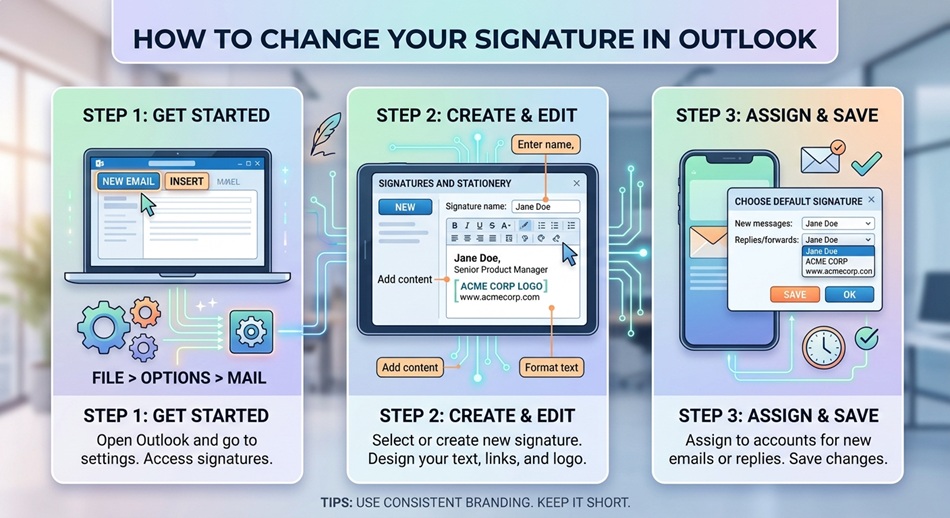
To change your signature in Outlook (new Windows version), go to Settings > Accounts > Signatures, click Edit next to the signature you want to change, make your edits, and select Save. The exact path differs slightly depending on whether you’re on classic Outlook, Mac, or Outlook on the web, so check the version that matches what you’re actually using below.
Outlook has enough different versions floating around, classic desktop, the new Windows app, Mac, and web, that “change your signature” means a slightly different click path depending on which one you’ve got open. Here’s every version.
New Outlook (Windows)
- Click Settings (the gear icon).
- Go to Accounts > Signatures.
- Click Edit next to the signature you want to change.
- Make your edits, then click Save.
Classic Outlook (Windows)
- Go to the File tab.
- Click Options > Mail > Signatures.
- Edit the text in the signature box, using the mini formatting toolbar to adjust fonts, colors, or add a logo/image.
- Click Save, then OK to close the window.
Outlook on Mac
- In the menu bar, go to Outlook > Settings.
- Under the Email section, click Signatures.
- Choose the signature you want to edit from the left pane.
- Make your changes in the text box on the right.
Outlook on the web
- Sign in at outlook.com and click the gear icon in the upper-right corner.
- Select View all Outlook settings.
- Go to Mail > Compose and reply.
- Edit your signature in the text box, then click Save.
Setting your signature to apply automatically
In each version, there’s a setting near the signature editor to choose whether your signature is added automatically to new messages, replies, and forwards. It’s easy to edit the signature text itself and forget this step, then wonder why the updated signature isn’t showing up, so double-check it after saving.
Adding a legal disclaimer or company template
If your workplace requires a standard disclaimer, legal footer, or company-branded template, that’s usually managed centrally by an IT admin through Exchange transport rules or a signature management add-in, rather than something you edit yourself in Outlook’s signature settings. If a mandatory disclaimer isn’t appearing and you believe it should be, that’s a question for IT, not a signature settings problem you can fix on your end.
Why your signature might look different to recipients
A signature that includes custom fonts, certain formatting, or an embedded image can render differently depending on the recipient’s email client. If your signature looks broken or oddly formatted for some people but not others, simplify the formatting (basic fonts, a hosted image link instead of a pasted image) rather than assuming it’s a bug on your end.
Why your signature isn’t the same on every device
In new Outlook and Outlook on the web, signatures are stored in the cloud and sync automatically between those two. Classic desktop Outlook and the mobile app each keep their own separate signature settings that don’t sync with the cloud version or each other, which is the actual reason people end up with a different signature on their phone than on their computer. There’s no single setting that unifies all of them; each version needs to be set individually.
Adding an image, logo, or hyperlink to your signature
- Adding an image: use the image icon in the signature editor’s formatting toolbar, or copy and paste an image directly into the text box. Keep it small in file size so it doesn’t add noticeable weight to every email.
- Adding a hyperlink: select the text you want linked (like your name or a website), then use the link icon in the toolbar to attach the URL, rather than pasting a raw link that looks less professional.
- Using HTML for more control: classic Outlook supports pasting HTML-formatted signatures for more precise layout control than the built-in editor offers, useful if you’re using a signature generator tool or a company template.
Setting different defaults for new messages vs. replies
Many people want a full signature (name, title, contact info) on new messages but a shorter one, or none at all, on replies within an existing thread. Every version’s signature settings screen has separate dropdowns for “new messages” and “replies/forwards” specifically so you can assign a different signature, or none, to each.
Frequently asked questions
Why isn’t my new signature showing up in emails?
The most common cause is that the signature isn’t set as your default for new messages or replies. Check the dropdown menus near the signature editor (usually labeled something like “New messages” and “Replies/forwards”) and make sure your updated signature is selected in both.
Can I have different signatures for different email accounts?
Yes, in both classic and new Outlook you can create multiple signatures and assign a different default to each email account you have connected, under the same Signatures settings screen.
How do I add a logo or image to my Outlook signature?
In the signature editor, use the image icon in the formatting toolbar to insert an image directly, or copy and paste an image into the text box. Keep the file size small so it doesn’t bloat every email you send.
Does changing my signature in Outlook affect the mobile app too?
No, the Outlook mobile app has its own separate signature setting, found under the mobile app’s own Settings menu. You’ll need to update it there separately if you want it to match your desktop signature.