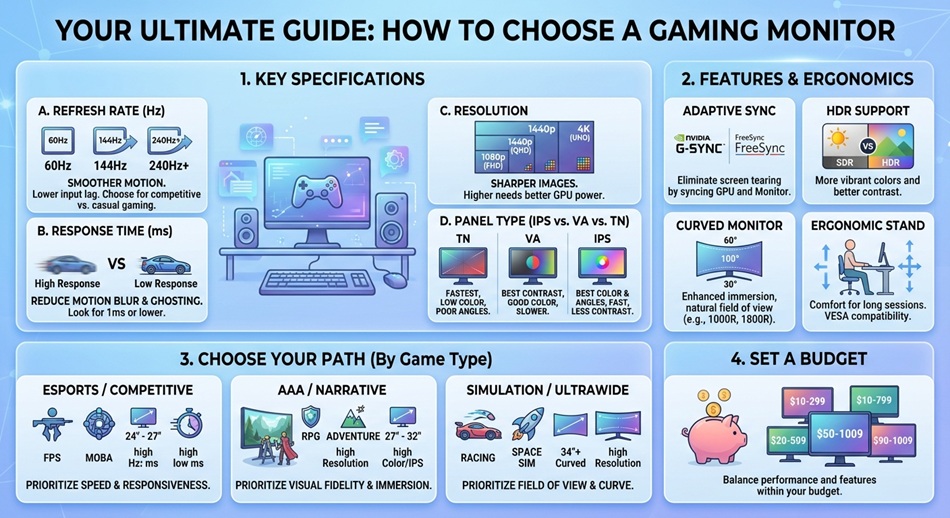
For most people, the right gaming monitor comes down to three decisions made in this order: refresh rate, then resolution and size together, then panel type. A 27-inch 1440p IPS panel at 165Hz covers the vast majority of gamers better than any single “best” monitor, because it balances image quality, motion smoothness, and GPU cost in a way that extreme choices on either end don’t. Everything else, including HDR, curve, and adaptive sync branding, matters less than people think and should only break a tie between two monitors that already match on those three specs.
I’ve bought four gaming monitors over the years and returned one of them, a 240Hz TN panel that looked genuinely worse for everything except competitive shooters than the 144Hz IPS monitor it replaced. That’s the trap with this purchase: it’s easy to optimize for the spec that sounds most impressive on a box and end up with a monitor that’s worse for how you actually play. Here’s how to actually think through it.
Start with what you actually play
Your game mix matters more than any individual spec, because it changes which trade-offs are worth making.
- Competitive shooters (Valorant, CS2, Overwatch): prioritize refresh rate and response time over resolution and color accuracy. A 240Hz+ 1080p or 1440p monitor with a fast panel will serve you better than a gorgeous 4K screen that can’t keep up.
- Single-player and story-driven games: prioritize panel quality, contrast, and HDR over raw refresh rate. 144Hz is already smooth for these genres, and the extra money is better spent on an OLED or Mini-LED panel than on hitting 360Hz.
- A genuine mix of both: this is most people, and it’s exactly the case a 1440p 165Hz IPS or OLED monitor is built for. You get enough refresh rate headroom for competitive play and enough image quality for everything else.
Refresh rate: the single upgrade you’ll actually feel
Refresh rate is the one spec where the jump is obvious to nearly everyone on the first day, not just to enthusiasts who know what to look for.
- 60Hz: the old baseline. Camera pans and fast motion look noticeably choppy once you’ve used anything faster, even if you never noticed it before.
- 144 to 180Hz: the sweet spot for almost everyone. This is where the jump from 60Hz stops being subtle and starts being obvious, and where most GPUs below the flagship tier can actually keep pace in modern games.
- 240Hz and above: worth it specifically for competitive shooters, and specifically if your GPU can consistently push frame rates that high. A 240Hz monitor paired with a card that only delivers 100 FPS in your games doesn’t give you the benefit you paid for.
If you only change one thing from a 60Hz monitor, make it this one. It’s the upgrade that’s impossible to miss.
Resolution and size: treat these as one decision, not two
Resolution and screen size only make sense evaluated together, because pixel density is what actually determines how sharp the image looks at your desk distance.
- 1080p: stick to 24 to 25 inches. Stretched over anything larger, the image starts to look soft, and you’ll also need less GPU power to hit high refresh rates at this resolution.
- 1440p: the current sweet spot for a 27-inch screen, and the resolution where most mid-range GPUs (think an RTX 5070-class card) can still hit 144Hz or higher in modern titles without dropping every setting to low.
- 4K: ideal at 32 inches and up, where the extra pixel density is actually visible. On anything smaller than 27 inches, 4K is mostly wasted resolution your eyes can’t fully resolve anyway, and it demands significantly more GPU power to run at a high frame rate.
If your GPU can’t comfortably hit at least 100 FPS at a given resolution in the games you actually play, a higher refresh rate monitor at that resolution won’t help you, since you’ll never reach the frame rate to use it.
Panel type: the biggest factor in how the image actually looks
This is where most of the real quality differences live, and it’s the spec most people research least.
- IPS: the safe, accurate all-rounder. Good color, wide viewing angles, and response times fast enough for competitive play on modern panels. The default recommendation for most buyers.
- VA: deeper blacks and better contrast than IPS at a similar price, which makes dark scenes look genuinely better. The trade-off is motion trailing in fast-paced games, which is more noticeable the faster the on-screen motion gets.
- TN: mostly outdated now that fast IPS panels exist. Still shows up in budget high-refresh monitors, but the color and viewing-angle compromise is steep for what you save.
- OLED: the best image quality available, with true blacks (not the dark gray you get from an LCD panel trying to display black) and response times fast enough that motion blur is essentially a non-issue. The real trade-off is burn-in risk from static elements like HUDs and killfeeds if you leave them on-screen for extended periods, plus a higher price.
- Mini-LED: a middle ground that uses thousands of individually dimmable LED zones to get much closer to OLED-level HDR and contrast on an LCD panel, without the burn-in risk. A strong pick if you want HDR performance but aren’t ready to deal with OLED’s care requirements.
Response time: what the “1ms” on the box actually means
Response time claims on packaging are almost always measured under ideal lab conditions using Gray-to-Gray (GtG) timing, which doesn’t reflect how the panel behaves across the full range of colors and motion you’ll actually see in a game. A second, more meaningful metric, Moving Picture Response Time (MPRT), is used less often in marketing because the numbers look less impressive.
In practice: anything under 4ms GtG on a modern IPS panel is fast enough that you won’t notice ghosting in normal play. OLED panels respond so quickly that response time essentially stops being a consideration at all. Treat the advertised number as a rough signal, not a precise measurement you can compare apples-to-apples across brands.
Adaptive sync: G-Sync vs. FreeSync
Adaptive sync matches your monitor’s refresh rate to your GPU’s actual frame output in real time, which eliminates screen tearing without the input lag that traditional V-Sync introduces.
- G-Sync: NVIDIA’s proprietary standard, historically more expensive because it required dedicated hardware in the monitor.
- FreeSync: AMD’s open standard, now supported by far more monitors, and most FreeSync monitors work perfectly well with NVIDIA GPUs too under NVIDIA’s “G-Sync Compatible” certification.
Unless you have a specific reason to want NVIDIA’s proprietary implementation, a FreeSync (or G-Sync Compatible) monitor will save you money without a meaningful downgrade in experience for the overwhelming majority of setups.
HDR: when it’s worth paying for, and when it’s a sticker
HDR is one of the most misused labels on a monitor box. The VESA DisplayHDR certification comes in tiers, and the lowest one, DisplayHDR 400, requires so little brightness and contrast improvement over standard content that many monitors barely look different with HDR turned on. DisplayHDR 600 and above, and especially HDR performance on an OLED or Mini-LED panel, is where you actually start to see the deeper contrast and brighter highlights HDR is supposed to deliver.
If a monitor’s only HDR credential is the base DisplayHDR 400 badge, don’t let it factor into your decision. It’s close enough to marketing that treating it as a real feature will lead you to overpay for something you won’t visibly notice.
Ports and connectivity you shouldn’t skip
- DisplayPort 1.4 or 2.1: needed to actually hit high refresh rates at 1440p or 4K. Check that the port version on the monitor matches the bandwidth your target resolution and refresh rate combination requires.
- HDMI 2.1: essential if you’re also connecting a current-generation console, since it’s required for 4K at 120fps.
- USB-C with power delivery: genuinely useful if you’re connecting a laptop, since it can carry video and charge the laptop over a single cable.
- Built-in USB hub: a small convenience, but a real one if you want to plug a keyboard, mouse dongle, or webcam directly into the monitor instead of running everything back to your PC.
Curved vs. flat: does it actually matter?
A curve makes a real, noticeable difference on ultrawide monitors, where it keeps the edges of a very wide screen at a more consistent viewing distance from your eyes. On a standard 16:9 monitor under 34 inches, the curve is subtle enough that it comes down to personal preference more than measurable benefit. Don’t let a curved panel push a monitor over a flat one that’s otherwise a better spec match for you.
What to actually get, by budget
- Under $200: a 1080p IPS monitor at 144 to 165Hz. This alone is a massive upgrade from 60Hz and covers competitive and casual play well.
- $200 to $400: a 1440p IPS or VA monitor at 144 to 165Hz. This is the sweet spot for most people building or upgrading a mid-range gaming PC.
- $400 to $700: entry-level OLED or Mini-LED, or a higher-refresh 1440p panel for competitive players who want to push toward 240Hz.
- $700 and up: premium OLED, high-refresh 4K, or ultrawide monitors, where you’re paying for the image quality and immersion rather than a meaningfully different gameplay experience.
The quick decision framework
Pick your refresh rate based on what you play (144 to 180Hz for most people, 240Hz+ for competitive shooters specifically). Pick your resolution and size together, matched to what your GPU can actually push. Then choose panel type based on whether image quality (OLED, Mini-LED, VA) or raw speed and price (IPS, TN) matters more to you. Treat HDR tier, adaptive sync branding, and curve as tie-breakers, not primary decision factors.
Frequently asked questions
Is 144Hz enough for gaming, or should I get 240Hz?
144Hz is enough for the vast majority of players and genres. 240Hz is worth the extra cost specifically for competitive shooters where you’re consistently hitting frame rates that high, since a 240Hz monitor paired with a GPU that can’t reach those frame rates won’t deliver the benefit you paid for.
Do I need a 4K monitor for gaming?
Only if you’re pairing it with a screen size of 27 inches or larger and a GPU powerful enough to hit a solid frame rate at that resolution in your games. On a smaller screen, 1440p will look nearly as sharp for meaningfully less GPU strain.
Is OLED worth the price for gaming, or is it overkill?
It’s worth it if image quality matters to you as much as performance, particularly for single-player and story-driven games where the deep contrast and near-instant response time are most noticeable. If you mostly play competitive shooters and are budget-conscious, a fast IPS panel gets you most of the practical benefit for less money.
Does G-Sync work with AMD graphics cards?
True G-Sync requires NVIDIA’s proprietary hardware and generally doesn’t support AMD cards. However, most modern G-Sync Compatible monitors use adaptive sync technology that works with both NVIDIA and AMD GPUs, so check whether a monitor is “G-Sync Compatible” versus true “G-Sync Ultimate” before assuming it’s locked to one GPU brand.
How much does response time actually matter for casual gaming?
Less than the marketing suggests. Anything under 4ms GtG on a modern IPS panel is fast enough that ghosting isn’t noticeable in typical play. Unless you’re playing fast-paced competitive games at a high level, this spec shouldn’t heavily influence your decision.
Should I buy a curved monitor for gaming?
Only if you’re getting an ultrawide monitor, where the curve provides a real, noticeable benefit by keeping the edges of the screen at a consistent viewing distance. On a standard-width monitor, treat curved as a preference, not a meaningful upgrade.