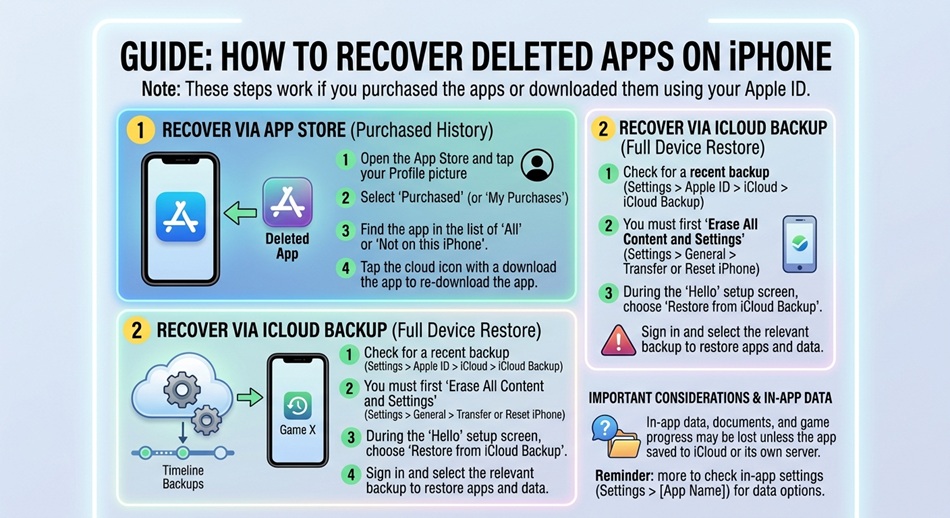
To recover a deleted app on iPhone, open the App Store, tap your profile icon in the top right, tap Purchased (or search for the app directly), and tap the cloud download icon next to it. Your login and most of your data usually come back automatically once you sign in, since almost every app that matters stores your data on its own servers or in your iCloud account rather than only on your phone. The exceptions and edge cases are below, along with what to do if the app doesn’t show up at all.
The panic that comes with an accidentally deleted app is almost always worse than the actual problem. I’ve deleted apps mid-swipe more times than I’d like to admit, usually while trying to reorganize my Home Screen, and in nearly every case the app and its data were back within a couple of minutes. Here’s the full process, including the situations where it’s genuinely more complicated.
First, redownload it from the App Store
This works for the vast majority of deleted apps, whether they were free or paid.
- Open the App Store.
- Search for the app by name using the search tab, or tap your profile icon in the top-right corner and select Purchased to browse everything tied to your Apple ID.
- Tap the cloud download icon (or Get for a free app) next to the app.
- Wait for it to install, then open it and log in if prompted.
Because you already purchased or downloaded the app once, you won’t be charged again, even for paid apps. This is standard behavior tied to your Apple ID, not something you need to set up in advance.
Can’t find it through search? Check your purchase history
If searching the App Store doesn’t surface the app, your purchase history is more reliable because it’s tied directly to your account rather than the App Store’s current catalog.
- Go to Settings and tap your name at the top.
- Tap Media & Purchases, then View Account.
- Tap Purchase History to see every app you’ve ever downloaded, including ones removed from your Home Screen or App Library long ago.
If the app is listed here but the download button is missing or greyed out, it’s usually because the app has been pulled from the App Store entirely, which is covered further down.
What happens to your data when you reinstall
This is the part people worry about most, and the answer depends on how the app stores its data:
- Account-based apps (social media, banking, streaming, most productivity apps): your data lives on the app’s own servers, so logging back in restores everything exactly as it was.
- iCloud-synced apps (Notes, many journaling and habit-tracking apps, some third-party apps that specifically support iCloud sync): your data restores automatically as long as you’re signed into the same iCloud account and iCloud sync is enabled for that app under Settings > [Your Name] > iCloud.
- Local-only apps (data stored only on the device, with no account or iCloud sync): this is where data can genuinely be lost if the app was fully deleted rather than offloaded. Your only path back is restoring from a device backup made before you deleted the app.
If you’re not sure which category an app falls into, check whether it ever asked you to create an account or sign in. If it did, your data is almost certainly safe.
The app was removed from the App Store entirely
Sometimes a developer pulls an app, or Apple removes it for policy reasons, and it simply isn’t available to redownload anymore, even if it shows up in your purchase history. There’s no way to reinstall an app that’s been delisted, since the App Store won’t let you download something it no longer distributes. Your only options in this situation are restoring from a backup that still has the app installed, or, if you have an older iPhone or iPad still running it, transferring data manually from that device.
Restoring from a backup (last resort, full recovery)
If an app stored data locally and you need everything back exactly as it was, restoring your entire iPhone from a backup made before the deletion is the only guaranteed option. This is a bigger step since it resets your phone to that backup’s state.
- Go to Settings > General > Transfer or Reset iPhone.
- Tap Erase All Content and Settings, then choose to restore from an iCloud or computer backup made before you deleted the app.
- Follow the setup prompts and select the correct backup by date.
Because this resets everything else on the phone to that backup’s state too, only do this if the lost data is genuinely important and there’s no other way to get it back.
A few things that commonly trip people up
- Family Sharing: if the app was originally downloaded by another family member’s Apple ID, you may need to redownload it through Family Sharing rather than your own purchase history. Check Settings > [Your Name] > Family Sharing.
- Hidden purchases: if a purchase is hidden, it won’t appear in a normal search. Go to Account > Purchase History, tap Hidden Purchases, and unhide it before trying to redownload.
- Screen Time restrictions: if App Store installs are restricted under Settings > Screen Time > Content & Privacy Restrictions, redownloading may be blocked until the restriction is adjusted.
- Region changes: an app available in your old App Store region may not appear if you’ve since switched your Apple ID’s country or region.
Frequently asked questions
Do I have to pay again for a paid app I deleted?
No. Any app tied to your Apple ID, free or paid, can be redownloaded at no additional cost. You’re only charged again if you’re downloading it under a different Apple ID than the one that made the original purchase.
How long do I have to redownload a deleted app?
There’s no time limit. As long as the app is still available on the App Store and tied to your Apple ID’s purchase history, you can redownload it years later.
Will my app data be exactly the same after reinstalling?
For apps that store data on their own servers or sync through iCloud, yes. For apps that only stored data locally on your phone, reinstalling gives you a fresh copy of the app with no data, unless you restore from a backup that includes it.
What’s the difference between offloading an app and deleting it?
Offloading removes the app itself but keeps its documents and data, so reinstalling restores everything automatically. Deleting removes the app and, for apps that don’t sync data externally, its local data as well.
Can I recover a deleted app without a backup?
Yes, as long as it’s still listed on the App Store. Redownloading doesn’t require a backup at all; backups only matter if you need to recover locally stored data from an app that doesn’t sync to an account or iCloud.
Why isn’t a deleted app showing up when I search the App Store?
Either it’s been removed from the App Store by the developer or Apple, it’s hidden in your purchase history, or a Screen Time restriction is filtering search results. Check Purchase History and Hidden Purchases before assuming it’s gone for good.