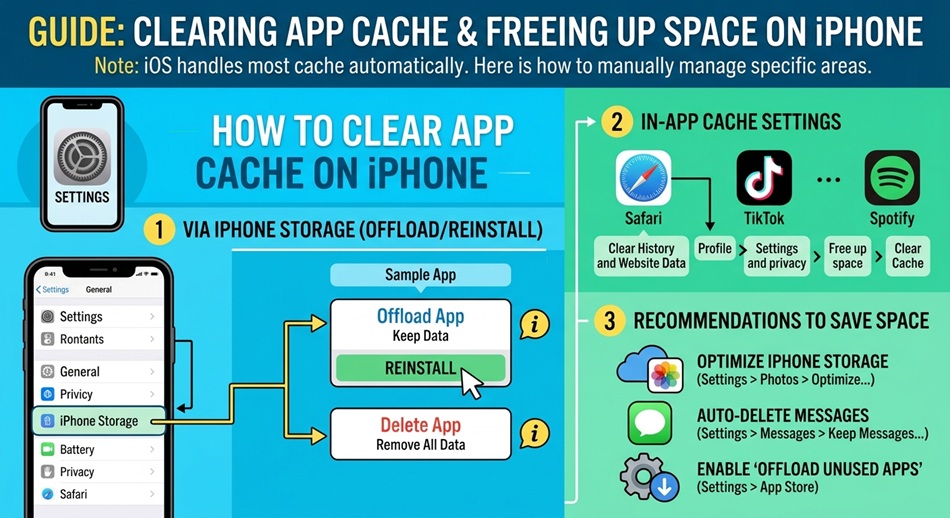
iPhone doesn’t have one universal “Clear Cache” button the way Android does, so the right method depends on what’s actually filling up your storage. For Safari, go to Settings > Safari > Clear History and Website Data. For a specific app, check inside that app’s own settings first for a “Clear Cache,” “Free Up Space,” or “Manage Storage” option. A lot of apps that cache heavily, like Spotify, Instagram, YouTube, TikTok, and Chrome, have one built in. If an app doesn’t offer that, offloading it (Settings > General > iPhone Storage > tap the app > Offload App) clears out its cache and temporary files while keeping your login, documents, and data intact.
I run into this every few months when my phone starts warning me storage is almost full, and it’s never obvious at first where the space actually went. Apple genuinely doesn’t give you a single settings screen that says “cache” and lets you wipe it, which trips people up if they’re used to Android’s per-app “Clear Cache” button. Instead, iOS spreads cache-clearing across a handful of different places depending on what’s generating the junk. Here’s every method that actually works, starting with the one most people are looking for.
1. Clear Safari’s cache (the closest thing to a universal cache clear)
If your iPhone’s storage is being eaten by “Safari” in the Settings > General > iPhone Storage list, this is the fix. It clears cached images, browsing history, autofill data, and cookies from every site you’ve visited.
- Open Settings and tap Safari.
- Scroll down and tap Clear History and Website Data.
- Confirm by tapping Clear History and Data on the pop-up.
This signs you out of most websites and clears saved form data along with the cache, so don’t do it if you’re relying on Safari to stay logged in somewhere. If you only want to clear cached data for one specific site without wiping everything, go to Settings > Safari > Advanced > Website Data, search for the site, swipe left on it, and tap Delete.
2. Use the app’s own in-app cache option first
Before you offload or delete anything, check whether the app already has a built-in way to clear its own cache. A growing number of apps that store a lot of temporary data do. It’s usually the fastest option because it doesn’t sign you out or remove the app.
- Spotify: Settings and privacy > Storage > Clear Cache.
- Instagram: Settings > Account Center > Your information and permissions > App storage > Free up space, then tap Clear.
- YouTube: Settings > General > Clear Watch History or Clear Search History (YouTube manages most of its cache automatically otherwise).
- TikTok: Profile > Menu > Settings and privacy > Free up space > Clear cache.
- Chrome: Menu (⋮) > Settings > Privacy and Security > Clear Browsing Data.
If the app you’re dealing with isn’t listed here, check its own Settings menu for anything labeled Storage, Cache, or Data Usage. Most streaming, social, and browser apps put it somewhere close to account settings.
3. Offload an app to wipe its cache without losing your data
This is the closest thing iOS has to a real “clear cache” button for apps that don’t offer their own. Offloading removes the app itself from your phone but keeps its documents and data, so when you reopen it, iOS reinstalls it and your login, saved files, and settings are usually right where you left them, while all the temporary cache files get wiped in the process.
- Open Settings > General > iPhone Storage.
- Wait for the list to load, then tap the app you want to clear.
- Tap Offload App.
- Confirm when prompted.
The app icon stays on your Home Screen with a small cloud icon on it. Tap it whenever you’re ready and iOS redownloads it automatically, cache-free, over Wi-Fi or cellular.
4. Delete and reinstall the app (the nuclear option)
If offloading didn’t free up as much space as you expected, some data is being stored outside the “documents and data” category that offloading preserves. Deleting the app removes everything, cache included, with no exceptions.
- Press and hold the app icon until the quick-action menu appears.
- Tap Remove App, then Delete App to confirm.
- Reinstall it from the App Store when you’re ready.
Be aware this also clears anything the app hadn’t backed up to your account or iCloud. Local drafts, offline downloads, and app-specific settings that aren’t tied to your login will be gone for good.
5. Restart your iPhone to clear temporary system-level cache
A restart won’t touch the cache built up by individual apps, but it does clear out temporary system files and background process memory that can accumulate over weeks of uptime. It’s worth doing after any of the steps above, and it’s a reasonable first move if your phone feels sluggish rather than actually low on storage.
- Press and hold the side button and either volume button until the power-off slider appears.
- Drag the slider to turn your iPhone off.
- Wait about 30 seconds, then hold the side button again until the Apple logo shows up.
Still low on storage after clearing cache? A few more things to check
If you’ve gone through the steps above and storage still looks tight, the cache probably isn’t your real problem:
- Check what’s actually large: go to Settings > General > iPhone Storage and look at the full app list sorted by size. Photos, videos, and messages with attachments are usually the bigger culprits, not app cache.
- Review Photos and Messages separately: both have their own storage-saving options (like “Optimize iPhone Storage” for Photos) under Settings > Photos and Settings > General > iPhone Storage > Messages.
- Look for “Other” or “System Data”: a large System Data figure usually points to app caches, logs, and temp files that build up across many apps at once; restarting and offloading your biggest apps tends to bring this down.
Frequently asked questions
Why doesn’t iPhone have a “Clear Cache” button like Android?
Apple’s sandboxing model keeps each app’s data isolated and doesn’t expose a system-wide cache the way Android does. Instead, cache-clearing happens per app (through the app itself or by offloading it) or per browser (through Safari’s own settings).
Does offloading an app delete my saved logins and data?
No. Offloading removes the app binary but keeps your documents, data, and most account information. When you reopen the app, iOS reinstalls it and restores what it saved, though a small number of apps may ask you to log in again.
Will clearing Safari’s cache log me out of every website?
Yes, in most cases. Clearing history and website data removes cookies along with the cache, which signs you out of sites that rely on cookies to keep you logged in. If you only want to clear one site’s data, use Settings > Safari > Advanced > Website Data instead of the full clear.
How do I see how much cache a specific app is using?
Go to Settings > General > iPhone Storage and tap the app. iOS shows a combined figure for the app plus its documents and data, but it doesn’t break out cache specifically. If that combined number is much larger than the app itself, most of it is likely cache and temporary files.
Does restarting my iPhone actually clear any cache?
It clears some temporary system-level files and frees up RAM, but it doesn’t touch the cache stored by individual apps on disk. For app-specific cache, you still need the in-app option, offloading, or deleting the app.
Is there a way to clear cache for all apps at once?
Not directly. The closest option is offloading your largest apps one at a time from Settings > General > iPhone Storage, which you can do for several apps in a row without much extra effort.