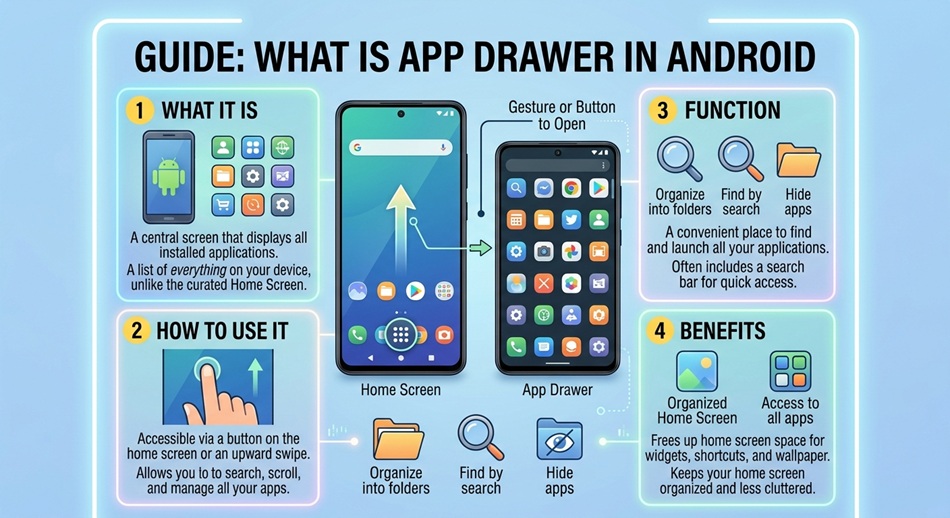
The app drawer is the screen on Android that lists every app installed on your phone, separate from your Home Screen, which only shows the apps and folders you’ve chosen to place there. Think of your Home Screen as a curated shortcut panel and the app drawer as the full, unfiltered index behind it. You open it with an upward swipe on most modern Android phones, or a dedicated button on some manufacturer skins, and it’s one of the most fundamental differences between how Android and iOS organize apps.
If you’ve just switched from an iPhone, this is usually the first thing that feels unfamiliar, since iOS puts every app somewhere on a Home Screen page (or buried in the App Library) with no separate master list. Android’s app drawer solves a problem iOS doesn’t really have to deal with in the same way: keeping your Home Screen clean without losing quick access to everything you’ve installed.
How the app drawer differs from your Home Screen
Your Home Screen is meant to be curated. It holds whatever app icons, folders, and widgets you’ve deliberately placed there, arranged however you like across as many pages as you want. Nothing shows up there automatically just because you installed it.
The app drawer, by contrast, is comprehensive by default. Every app you install appears there automatically, regardless of whether you’ve added it to your Home Screen. This means you can keep your Home Screen sparse (just your most-used apps and widgets) while still having one tap of access to everything else, including apps you rarely open but don’t want to uninstall.
How to open the app drawer
The exact gesture depends on your phone’s launcher, but it’s one of these on nearly every modern Android device:
- Stock Android / Pixel launcher: swipe up from anywhere on the Home Screen. A partial swipe up also reveals a search bar and app suggestions before you fully open the drawer.
- Samsung One UI: swipe up from the Home Screen, or tap the app icon grid button in the dock if your layout includes one.
- Other manufacturer skins (OnePlus, Xiaomi, and similar): usually swipe up as well, though some skins default to an iOS-style layout with no drawer at all until you enable one in launcher settings.
If swiping up does nothing on your phone, your launcher may be set to the drawer-free layout mentioned above, which puts every app directly on the Home Screen instead.
How apps are organized inside the drawer
Most app drawers sort apps alphabetically by default, with a search bar at the top for jumping straight to an app by typing part of its name. Many launchers also show a row of your most-used or recently installed apps near the top, separate from the full alphabetical list below.
Some manufacturer launchers, particularly Samsung’s, let you switch between alphabetical order, a custom order you set manually by dragging icons, or a most-used-first sorting. A few also support automatic folders or categories inside the drawer itself, grouping things like games or utilities together without you having to create the folders manually.
Customizing what shows in the app drawer
You have more control here than most people realize:
- Hiding apps: most launchers let you hide specific apps from the drawer entirely (commonly under the launcher’s settings, look for “Hide apps” or “App drawer settings”). Hidden apps still function normally; they’re just not visible or searchable from the drawer.
- Creating folders within the drawer: on launchers that support it, you can group related apps into folders inside the drawer the same way you’d create a folder on your Home Screen.
- Changing the grid layout: most launchers let you adjust how many app icons appear per row, which changes how much scrolling the drawer requires.
- Search behavior: on many phones, the drawer’s search bar can also search your device settings, contacts, and sometimes the web, not just installed apps.
Can you turn off the app drawer?
Yes, on most Android launchers. If you’d rather have every app live directly on your Home Screen, iOS-style, look for a setting like “Home Screen layout” in your launcher settings and switch it from the default drawer layout to “Home screen only” or similar wording (it varies by manufacturer). This places every installed app on a Home Screen page automatically, with no separate drawer to swipe into. You can usually switch back at any time without losing your existing layout.
Frequently asked questions
Does iPhone have an app drawer?
Not exactly. iOS uses the App Library instead, introduced in iOS 14, which automatically sorts apps into categorized folders rather than one alphabetical list. It serves a similar purpose to Android’s app drawer but organizes apps differently and isn’t accessed with a swipe-up gesture from the Home Screen the same way.
Why don’t newly installed apps automatically appear on my Home Screen?
On Android, new apps go into the app drawer by default, not the Home Screen. If you want an app on your Home Screen too, you generally need to find it in the drawer, press and hold its icon, and choose an option like “Add to Home screen.”
Can I search for an app I can’t find in the drawer?
Yes. Every app drawer has a search bar, usually at the top, and typing even a few letters of an app’s name will filter the list instantly. This is faster than scrolling for most people once they have more than a screen or two of installed apps.
Is the app drawer the same as the recent apps screen?
No, these are different features. The app drawer lists every installed app so you can open one. The recent apps screen (usually opened with a swipe up and hold, or a dedicated button depending on your phone) shows apps you currently have running in the background, so you can quickly switch back to one.
Why does my new Android phone not have an app drawer?
Some manufacturer launchers ship with the drawer-free, iOS-style layout as the default, particularly on phones aimed at users switching from iPhone. The app drawer is usually still available; you just need to switch your Home Screen layout setting to enable it.